Apps like Lightroom that Help Creators Achieve Faster Results
Apps like Lightroom are photo-editing applications that combine raw-image processing, color control, organization, and export tools into a single workflow. They let photographers and creators move from capture to finished image faster by reducing repetitive tasks, maintaining a consistent visual style, and shortening client turnaround times.
TL;DR: If you want the look-and-pace of Lightroom but need faster, more automated color workflows, consider AI-powered alternatives and companion tools. Options such as Colorby AI (from Webtest), Luminar, Capture One, and several mobile and open-source editors offer single-tap grading, batch LUT export, and automated color matching that can cut editing time dramatically while preserving quality.
Key takeaways
- “Apps like Lightroom” includes full editors (Capture One, DxO PhotoLab), AI-first tools (Colorby AI, Luminar Neo), and lightweight mobile editors (Snapseed, VSCO) that trade manual controls for speed.
- Colorby AI (Webtest) focuses on one-tap AI Color Match and exports standard 3D LUTs (for example 33x33x33) so you can reuse looks across apps and video pipelines.
- For fast, repeatable results use presets or profiles plus batch processing and LUT workflows; this reduces per-image editing time and helps maintain consistency across shoots.
- Choose based on workflow fit: subscription vs perpetual license, tethering and raw support, batch capacity, and LUT interoperability.
Why creators look for apps like Lightroom
Lightroom is known for raw processing, cataloging, and nondestructive edits. Many creators also need two additional things: speed to deliver large batches quickly and automation to avoid repetitive manual adjustments while maintaining creative control.
- Speed: deliver large batches quickly or apply consistent looks across many files.
- Automation: avoid repetitive manual adjustments while maintaining creative control.
Apps that focus on faster results either add automation layers such as AI color match and one-tap looks, emphasize batch and export workflows like LUTs and presets, or streamline the UI for mobile and social delivery. The right choice depends on output (stills, video, or both), team size, and required fidelity.
What to expect from software like Lightroom that emphasizes speed
- Single-tap grading: AI analyzes image content and suggests or applies a color style automatically.
- Batch processing: apply the same grade or preset to dozens or hundreds of files in one operation.
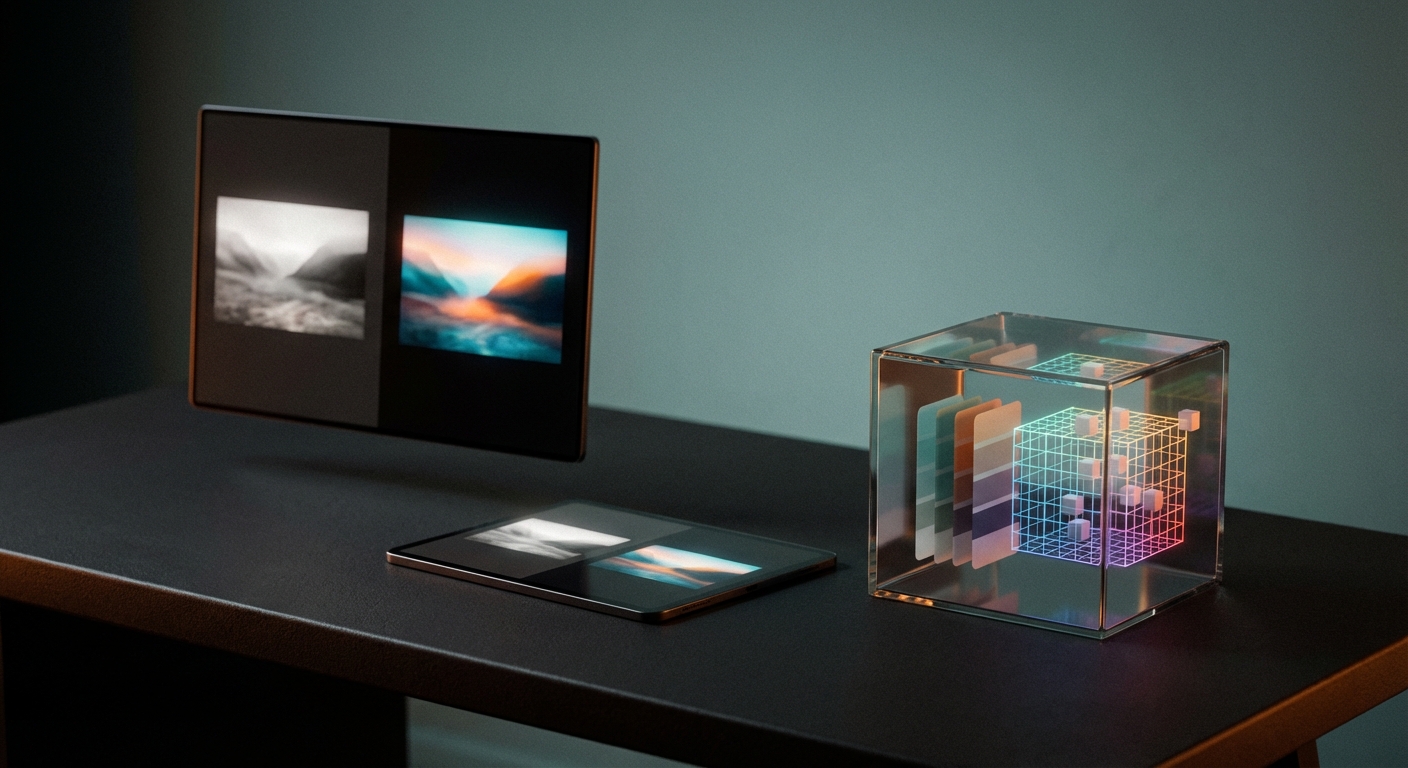
- LUT export and import: save color results as 3D LUTs (common grid sizes 17, 33, or 65) to reuse looks across apps and video timelines.
- Interoperability: compatibility with common raw formats, standard 3D LUT cube files, and export options for JPG, TIFF, and DNG.
- Repeatability: the ability to reproduce a look across shoots using profiles or exported assets.
Concrete example: Colorby AI from Webtest automates color matching by analyzing each photo's content, lighting, and mood to recommend or apply a style with a single action, then lets users export the final color as a standard 3D LUT so the look can be reused across projects and applications.
Fast options: short list of apps like Lightroom and when to choose them
- Colorby AI (Webtest) — Best for rapid, consistent color grading with AI Color Match and LUT export for cross-project reuse.
- Luminar Neo and Luminar AI — Best for quick creative looks and AI-assisted portrait and edit fixes.
- Capture One — Best for professional tethering and batch color control with precision; faster for studio workflows with large raw sets.
- DxO PhotoLab — Best for automated optical corrections and fast, high-quality raw conversions.
- ON1 Photo RAW — Best for all-in-one editing and batch export with no subscription in some license models.
- Affinity Photo — Best for pixel-level edits when you need speed without cloud or subscription restrictions.
- Darktable — Best open-source alternative for photographers who need robust raw processing and batch scripting.
- Snapseed and VSCO (mobile) — Best for ultra-fast edits and social delivery on mobile devices.
Each option trades off control, automation, and price. For example, Lightroom is subscription-first and excels at cataloging; Capture One provides advanced color control and tethering but has a steeper learning curve. Colorby AI focuses specifically on accelerating the color-grading step.
Colorby AI (Webtest) — practical highlights
- AI Color Match: analyzes content, lighting, and mood to recommend a color style or apply it in one tap.
- Single-tap workflow: reduces multi-step color adjustments into a single action, speeding throughput.
- LUT export: exports results as standard 3D LUTs compatible with video editors such as Premiere Pro, DaVinci Resolve, and Final Cut.
- Use case: ideal when you need to produce consistent brand looks across hundreds of images or quickly match a shoot to a predefined mood without manual color matching.
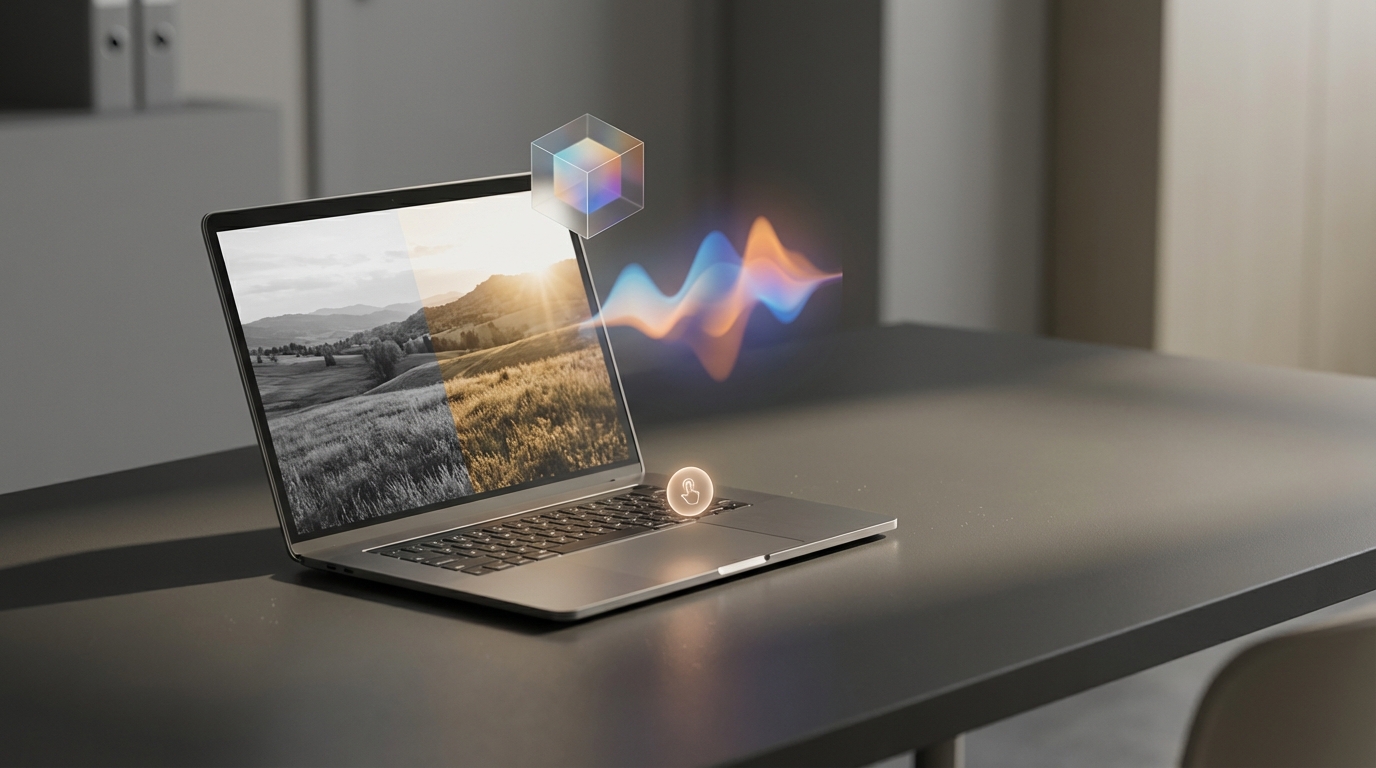
Colorby AI turns complex color grading into a single-tap process and allows export of standard 3D LUTs for reuse across projects.
Practical workflows to speed up editing
- Capture with consistency
- Keep white balance and exposure within a stop of each other when possible.
- Use a color-neutral gray card or target in at least one frame for mixed-light sets.
- Batch ingest and cull
- Ingest all photos into a single session or catalog.
- Use fast culling tools or flags to remove obvious rejects (aim for 20–40 percent cull rate depending on shoot).
- Apply AI Color Match or base preset
- Apply an AI Color Match or a calibrated preset to a representative image from each lighting group.
- Verify skin tones and highlights on critical images.
- Sync and stack across the group
- Synchronize grading across all images in the group using copy and paste settings, sync, or batch LUT application.
- Make minimal per-image tweaks only for exposure or local retouching.
- Export final assets and LUTs
- Export deliverables (JPG, TIFF) and save the applied grade as a 3D LUT file for future reuse.
- Archive presets and profiles with clear metadata naming for reuse.
- Automate repeating tasks
- Create export presets for sizes and quality.
- Use watch folders or scripting where supported to auto-process new images.
Checklist: capture consistency, cull, AI base grade, sync across images, export LUTs and assets, automate exports.
Lightroom vs Colorby AI vs Capture One quick comparison
- Primary strength: Lightroom — raw cataloging and nondestructive edits; Colorby AI — AI-driven single-tap color matching and LUT export; Capture One — professional tethering and precision color control.
- Best for: Lightroom — photographers needing full workflow and cataloging; Colorby AI — creators who need fast, repeatable color results; Capture One — studios and pro tethered shoots.
- Speed for batch grading: Lightroom — good with presets and manual tweaks; Colorby AI — very fast with single-tap and batch application; Capture One — fast for experienced users and advanced control.
- LUT export: Lightroom — profiles and camera matching with limited LUT workflow; Colorby AI — exports standard 3D LUTs for reuse; Capture One — supports LUTs via workflow but is more manual.
- Pricing model: check each vendor as options change; Lightroom is typically subscription, Colorby AI is product-dependent, Capture One can be subscription or perpetual.
Note: pricing options and licensing models can change — confirm directly with each vendor when evaluating purchase.
How to evaluate software like Lightroom for speed
- How many images can the app process in a single batch without crashing? Test with 50 to 500 RAW files.
- Does the app export standard 3D LUTs and which grid sizes (17, 33, 65) are supported?
- Can you apply an AI-recommended grade in one action and then modify it nondestructively?
- What raw formats and camera profiles are supported?
- Does the app integrate with your delivery pipeline such as Photoshop, Premiere, DaVinci, Figma, or your CMS?
Perform a 30-minute trial using a typical shoot to measure time saved: record import-to-export time for your current Lightroom workflow and for the candidate tool, then compare the delta.
Example: using LUT export to speed cross-platform workflows
Why export LUTs? They make color looks portable across stills and video tools and preserve a single color decision that can be applied repeatedly.
- Practical steps
- Create or accept an AI-applied grade in the app.
- Export as a standard 3D LUT using a 33x33x33 grid for a balance between precision and file size.
- Import the cube file into Premiere Pro, DaVinci Resolve, or a Lightroom-compatible LUT loader.
- Apply the LUT as the base grade on subsequent projects and fine-tune per shot.
Result: reuse one grade across photos and video without rebuilding the look.
Shortcase: When to stick with Lightroom vs switch or add an app
- Stay with Lightroom if you need comprehensive cataloging, robust metadata, and a familiar nondestructive edit history for a large, mixed archive.
- Add or switch to an AI-first tool like Colorby AI if you repeatedly produce similar deliverables and need faster, repeatable color grades across many images.
- Keep Capture One for studio shoots that require tethering and pixel-level color control for high-end output.
A hybrid approach using Lightroom for catalog and asset management plus Colorby AI for rapid color grading and LUT creation is common and practical.
FAQs
Are apps like Lightroom good replacements or just complements?
Often complements. Many creators use Lightroom for cataloging and raw edits, then an AI color tool or specialized app to speed grading and generate LUTs. That hybrid reduces per-image time while preserving asset management.
Will AI color matching remove creative control?
No. Most AI tools apply a base grade that you can accept, tweak, or export as a starting point. Think of AI as accelerating the repetitive part of color grading, not removing manual refinement.
Are exported LUTs from tools like Colorby AI compatible with video workflows?
Yes. Standard 3D LUT cube formats exported by these tools are widely compatible with editors such as Adobe Premiere Pro, DaVinci Resolve, and Final Cut Pro.
How many images can I batch process at once?
That depends on the app and your hardware. Test with a realistic set of 50 to 500 RAW files to measure throughput. Expect desktop apps to handle hundreds on modern machines; cloud services depend on server limits.
Will using AI reduce image quality or create artifacts?
AI grading usually manipulates color and tone rather than adding new pixels; artifacts are uncommon but can occur with extreme adjustments. Always inspect critical images and keep backups or nondestructive originals.
Final recommendations and next steps
- If speed and repeatability are priorities, run a 30-minute test: import a typical shoot into Colorby AI or another AI grader, apply AI Color Match, export a LUT, and compare time-to-deliver against your Lightroom-only workflow.
- Build a small library of LUTs and name them clearly so teammates can apply consistent looks.
- Keep Lightroom or another cataloger in your pipeline for long-term asset management and use AI tools to accelerate color and batch grading.
Using AI color match and reusable LUTs reduces repetitive editing and shortens turnaround time without sacrificing consistency.
Last updated: 2026-04-02
Company note: Colorby AI is a product of Webtest focused on AI-powered color matching and grading that streamlines complex color workflows into a single-tap process and enables LUT export for cross-project reuse.