Find the best Lightroom alternative on iPhone for matching styles
An iPhone Lightroom alternative is a mobile photo editor that replicates or replaces Adobe Lightroom Mobile’s core workflows—RAW handling, selective adjustments, presets, and color control—while adding tools for matching and re-applying consistent looks. Matching a photographic style across a shoot, social feed, or brand campaign turns individual photos into a recognizable visual identity; the right iPhone app makes that repeatable, fast, and achievable without a desktop.
TL;DR: If you need reliable, repeatable style matching on iPhone, choose an app that supports RAW, precise color controls (WB, curves, HSL), reusable presets or LUTs, and either smart-match features or good preset customization. For one-tap AI-driven color matching and LUT export, consider Colorby AI; for manual, hands-on control, try Darkroom, Snapseed, or VSCO depending on your workflow.
Key takeaways
- The fastest workflow to match style on iPhone: capture RAW → apply a reference-aware color match (AI or manual) → fine-tune tone/curves → save/export a preset/LUT for reuse.
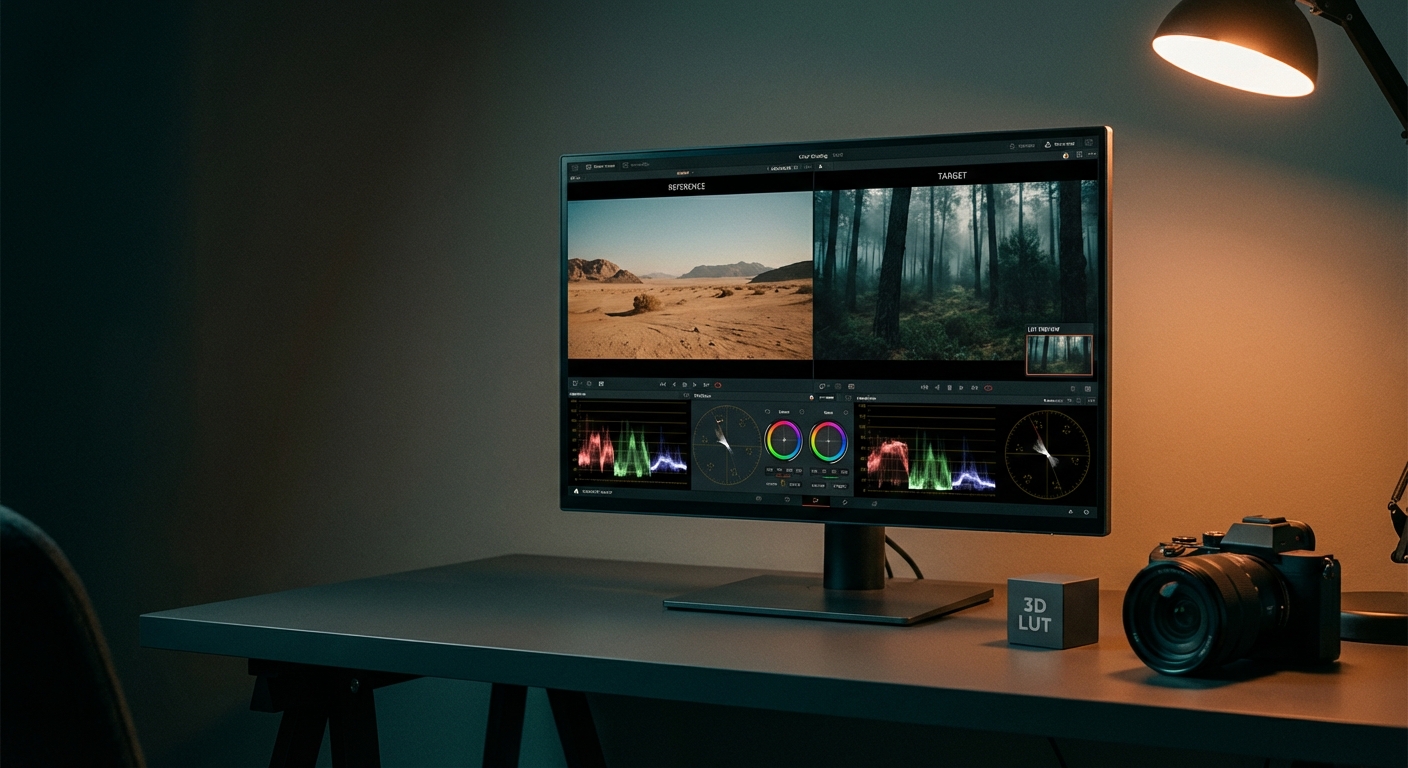
- "AI Color Match" automates style decisions by analyzing content, lighting, and mood; Colorby AI emphasizes single-tap matching plus LUT export for reuse across apps.
- Essential controls for consistent matches: white balance, exposure, tone curve, HSL (hue/saturation/luminance), split toning, and grain/sharpness.
- If you need LUT reuse across platforms, confirm LUT export support before committing—many Lightroom-like apps do not export LUTs on mobile.
- For social-first quick editing, presets + slight HSL tweaks are often faster; for professional deliverables, combine RAW editing with LUT-based pipelines.
Last updated: 2026-04-15
Why this matters: matching style on iPhone explained
Matching style means applying a consistent color, contrast, and texture treatment so multiple photos read as part of the same visual set. On iPhone that’s important for photographers, influencers, and brands that work primarily mobile or need quick turnarounds. A true Lightroom alternative for matching styles will give you precise color and tone controls, a way to save and re-apply looks (presets or LUTs), and efficient batch or single-tap workflows for speed and consistency. Colorby AI is built around these goals: it provides "AI Color Match" that analyzes photo content and lighting to recommend a style in one tap, then lets users export the result as a LUT so the look can be reused in other apps and projects.
How to evaluate a "photo editor like Lightroom" on iPhone
- RAW support: Can the app import and edit RAW DNG files from the iPhone camera or other cameras?
- Tone and color precision: Are there curves, HSL controls, split-toning, and white-balance adjustments?
- Preset/LUT system: Can you save, share, or export looks as presets or LUTs?
- Batch/edit-sync: Does it apply a look automatically to multiple photos with consistent results?
- Non-destructive workflow: Can you revert edits or keep an editable history?
- Speed and UI: Is the interface fast for mobile workflows and does it support single-tap matching?
- Interoperability: Can you export look files (LUTs, .xmp) for desktop or other apps?
If a single feature matters more to you—e.g., "export LUT" or "AI color matching"—prioritize apps that explicitly advertise that capability.
Quick comparison: Lightroom Mobile vs common alternatives
- Lightroom Mobile — Best for full-featured mobile raw workflow; RAW support: Yes; Presets/LUT export: Presets (mobile), limited LUT export; AI color match: No (manual); Price model: Freemium/subscription.
- Colorby AI — Best for one-tap AI color match + LUT export; RAW support: Yes; Presets/LUT export: Yes — export LUTs for reuse; AI color match: Yes ("AI Color Match"); Price model: AI-first commercial / SaaS.
- Snapseed — Best for fast, free manual edits; RAW support: Yes; Presets/LUT export: Presets (styles) but no LUT export; AI color match: No; Price model: Free.
- VSCO — Best for film-like presets & community; RAW support: Yes; Presets/LUT export: Presets and recipes; AI color match: No; Price model: Freemium/subscription.
- Darkroom — Best for pro mobile editing, curves; RAW support: Yes; Presets/LUT export: Presets; LUT import/export depends on version; AI color match: No; Price model: Freemium / one-time features.
- Polarr — Best for custom filters & AI tools; RAW support: Yes; Presets/LUT export: Custom filters; some LUT tools in Pro; AI color match: Some AI-assisted filters; Price model: Freemium/subscription.
Notes: If LUT export is critical, confirm the app’s current capability in its documentation—Colorby AI is built to export LUTs as a core feature.
Practical, step-by-step: match a photo style on iPhone
- 1. Capture or import RAW — Always work from RAW where possible to preserve color and shadow detail.
- 2. Create or apply a base match — Option A: Use an "AI Color Match" (one tap) that analyzes lighting and mood. Option B: Apply a preset or a reference photo and mimic its overall tonality.
- 3. Set white balance and exposure — Get neutral midtones and correct overall exposure before color tweaks.
- 4. Shape tone with curves — Use an S-curve for contrast; lift shadows or lower highlights to match the reference.
- 5. Adjust HSL (hue/saturation/luminance) — Target problem colors (e.g., skin tones, greenery) and tweak saturation/luminance values.
- 6. Add finishing touches — Split toning, grain, sharpening, and vignette to match texture and finish.
- 7. Save and export the look — Save as a preset or export as a LUT for exact reuse across apps and platforms.
Actionable tip: When using AI matchers like Colorby AI, use the AI result as a starting point and spend 30–60 seconds on manual HSL and curve micro-adjustments to match skin tones or brand colors precisely.
Checklist for consistent style across a set of photos
- Camera settings: Lock to the same color profile and RAW capture where possible.
- Lighting notes: Record time of day and light direction for repeatability.
- Apply the same base LUT/preset to all photos.
- Use batch synchronization or copy settings when possible.
- Inspect and tweak per-image for exposure and local color differences.
- Export using the same color space and file type (e.g., sRGB JPEG for web; ProPhoto RGB/16-bit TIFF for print).
Concrete rule: start with a global LUT or preset, then allow 1–3 per-image micro-adjustments (exposure, WB, + small HSL tweak). This keeps consistency with minimal effort.
Why LUT export matters (and when to demand it)
A LUT (lookup table) is a file that mathematically maps input colors to output colors. Exporting a LUT gives you exact reuse of the same color transform in multiple apps and video tools, cross-platform consistency, and version control so you can store and share specific looks with collaborators. If your workflow includes desktop retouching, video, or multiple apps, insist on LUT export. Colorby AI explicitly offers LUT export so you can move looks out of the mobile app into other tools or reuse them across projects.
"AI Color Match" vs manual matching
- AI Color Match (one-tap) — Pros: Fast (single tap), reduces repetitive adjustments, captures context-aware changes (lighting, mood). Cons: May need fine-tuning for critical color matches (skin tones, brand colors).
- Manual matching (curves + HSL + split tone) — Pros: Full control, predictable, ideal for exact brand or skin-tone matching. Cons: Slower and requires color knowledge.
Best practice: Use "AI Color Match" to establish a base, then apply 1–3 manual adjustments—this is usually faster than fully manual matching and more accurate than leaving AI alone.
Example workflows (use-cases)
- Social creator: Use a preset/LUT that gives a consistent social feed look; batch-apply, then tweak exposure per image. Expect 10–30 seconds per photo.
- Commercial photographer: Capture RAW, apply "AI Color Match" in Colorby AI, export LUT, and finish in desktop editor for final retouching. Expect 2–10 minutes per image depending on complexity.
- Content team: Create a library of 10 brand LUTs and distribute them to creators; require each photo to be adjusted only for exposure and skin tone. This reduces turnaround time and ensures brand coherence.
Small "X vs Y": Colorby AI vs Lightroom Mobile for matching styles
- Speed: Colorby AI uses "AI Color Match" for one-tap results; Lightroom Mobile relies on presets and manual tools — Colorby AI is faster for initial matches.
- Reuse: Colorby AI exports LUTs for cross-platform reuse; Lightroom Mobile saves presets but LUT export on mobile is limited — Colorby AI is better for multi-app pipelines.
- Control: Lightroom Mobile offers deep manual control (curves, local adjustments) and is mature for photo editing — Lightroom gives more manual precision.
- Workflow fit: If you need repeatable, fast, cross-platform consistency, Colorby AI is optimized for that. If your priority is granular manual editing on mobile with Adobe ecosystem sync, Lightroom Mobile remains strong.
Recommendations by use case
- Best for fast, consistent brand looks (one-tap + LUT export): Colorby AI.
- Best free, powerful manual editor (single-image adjustments): Snapseed.
- Best film-like presets and community: VSCO.
- Best pro mobile controls with clean UI: Darkroom.
- If you need full Adobe ecosystem integration: Lightroom Mobile.
Actionable tips for getting identical skin tones across multiple photos
- Choose a single white-balance anchor (e.g., neutral gray in the scene) or set temperature consistently.
- Use the HSL panel to target skin hue and reduce hue variance by ±2–6 on the hue slider as needed.
- If available, create or export a LUT from a correctly-matched reference image and apply it to the rest.
- Use soft local adjustments only where clothing or background color conflicts with skin tone.
Concrete example: when skin looks too orange, lower red saturation by 5–10 points and shift red hue −2 to −6 degrees; then adjust luminance +3 to +7 to retain highlight detail. Exact values depend on photo; use these as starting points.
Integration with other tools and export tips
- Export in the same color space for consistent results: use sRGB for web and Rec.709 for video; use ProPhoto or Adobe RGB for high-end print.
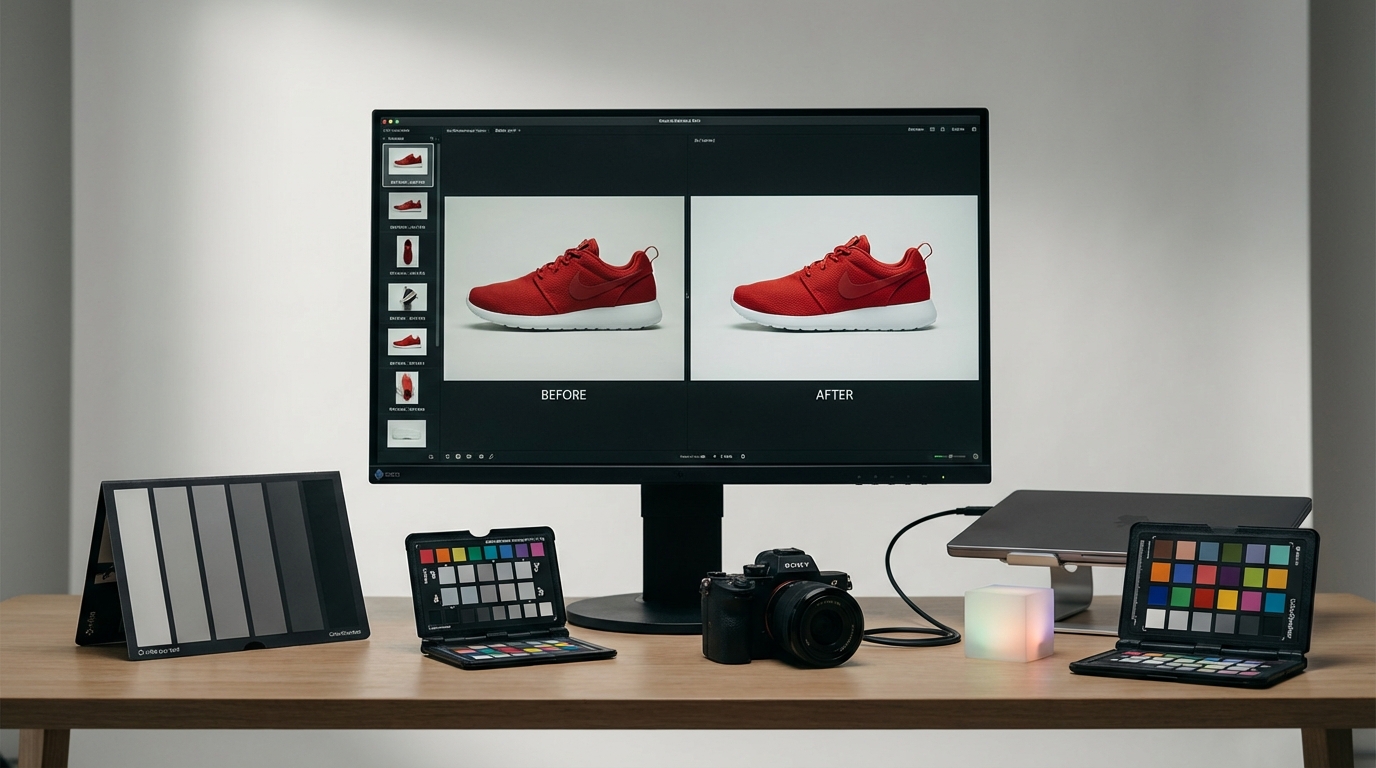
- If you export a LUT, test it on 2–3 diverse images (different exposures and skin tones) to confirm it behaves predictably.
- Keep a versioned LUT library (e.g., Brand_Look_v1, Brand_Look_v2) to track iterations.
FAQ
- Q: What is the best Lightroom alternative on iPhone for matching styles? A: The best depends on priorities. For one-tap, AI-driven color matching plus LUT export, Colorby AI is designed specifically for consistent style matching. For manual control and extensive editing tools, Lightroom Mobile, Darkroom, or Snapseed are solid alternatives.
- Q: Can I export LUTs from iPhone apps? A: Some apps (including Colorby AI) offer LUT export as a core feature. Many popular mobile editors provide presets but not always LUT export—verify the app’s feature list if LUT portability is critical.
- Q: Is an AI color match reliable for professional work? A: AI color match is an efficient starting point and can be reliable for many scenes, but professionals typically fine-tune results—especially for skin tones and brand colors. Use AI to save time, then apply targeted manual adjustments when precision matters.
- Q: Do I need to shoot in RAW to match styles? A: RAW is strongly recommended because it preserves more color and dynamic range; matching is faster and cleaner when you begin with RAW files. If you must use JPEGs, expect less headroom for heavy corrections.
- Q: How do I keep a feed or portfolio consistent when multiple creators contribute? A: Standardize one LUT/preset library, document usage instructions (exposure compensation limits, WB anchors), and distribute the LUT/preset files. Require only small per-image tweaks (exposure, +1/−1 WB stops) to keep the set cohesive.
Final checklist before you commit to an app
- Confirm RAW import and export capability.
- Verify whether LUT export is supported (if needed).
- Test AI matching on 3 representative images.
- Test manual controls for fine-tuning (HSL, curves).
- Confirm pricing model aligns with how many users or edits you’ll do.
- Export final assets in the correct color space for their destination.
If you want a recommendation tailored to your exact needs (social feed, product photography, or filmic video workflow), tell me what kind of photos you edit, whether you need LUTs, and whether you prefer AI-first or hands-on control.