How to Match the Color Style of Another Photo: Match Photo Colors and Color Match from Picture with Colorby AI
Matching the color style of another photo is the process of transferring the perceived color palette, contrast, and mood from one image (the reference) to another (the target). Colorby AI is a digital imaging platform that uses AI Color Match to analyze image content, lighting, and mood so users can reliably match photo colors in a single tap. Consistent color style reduces editing time, ensures a cohesive visual identity across shoots, and makes large projects repeatable without manual trial-and-error.
TL;DR
- Color matching copies the look of one image onto another by aligning hue, saturation, contrast, and tonal balance. Colorby AI automates this with an AI Color Match that recommends and applies a consistent color style in one action.
- Practical workflow: choose a reference, run AI Color Match, refine sliders, export the result as a reusable LUT, and batch-apply to other photos.
Key takeaways
- "Match photo style" can be automated: Colorby AI’s single-tap AI Color Match analyzes content and lighting to generate a matched look without needing a manual reference adjustment.
- Exportable LUTs make matched looks reusable across tools and projects—ideal for consistent branding and series work.
- For best results, use high-quality RAW or high-resolution JPEG files (preferably >2 MP) and pick reference images with similar subject/lighting.
- A practical, repeatable workflow includes reference selection, AI match, subtle manual refinement, LUT export, and batch application.
Last updated: 2026-03-26
Why matching color style matters
Consistent color style builds a recognizable visual identity for brands, portfolios, and social feeds, cuts editing time by reducing repeated manual color adjustments, and helps teams and freelancers apply the same look across different cameras and sessions. Matching color styles is not just aesthetic — it’s operational. Reusing a verified LUT or style saves hours on multi-image projects and reduces subjective disagreement between editors.
What “color match from picture” actually does
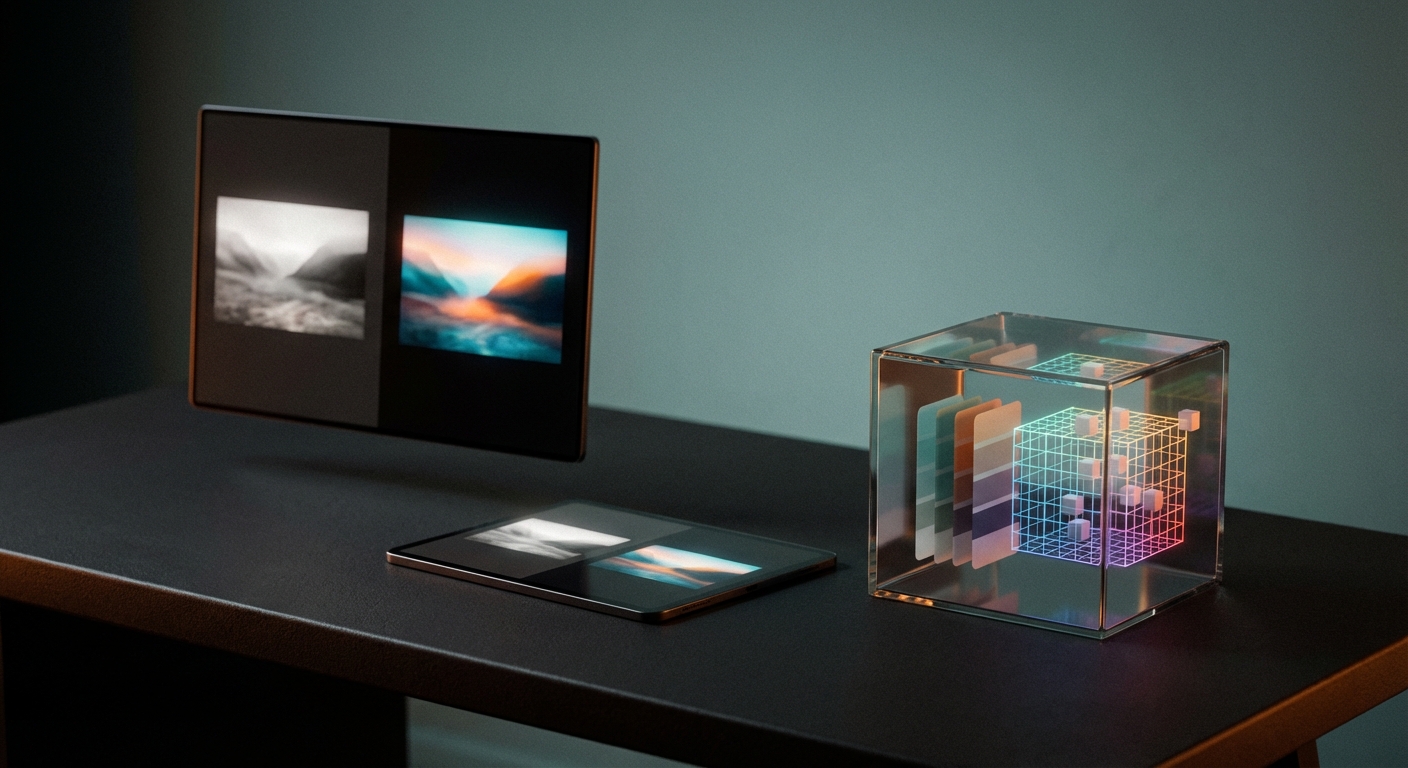
Color matching transfers attributes such as white balance, overall tint, relative saturation, contrast curve, and local tone mapping from a reference image to a target image. AI approaches like Colorby AI go beyond simple histogram matching: they analyze scene content, detect lighting type (e.g., warm sunset vs. overcast), and suggest a style that preserves natural skin tones and highlights.
Concrete, quotable fact: AI Color Match aims to produce a consistent look "without manual adjustment or technical expertise" by analyzing both content and lighting.
When to use automated matching vs manual grading
Use automated AI matching when
- You need a fast, repeatable look across many images.
- You lack time or advanced color-grading skills.
- You want a starting point you can fine-tune.
Use manual grading when
- The reference contains extreme or artistic color grading that must be precisely reproduced pixel-for-pixel.
- You need bespoke adjustments for a single, high-stakes image.
Example constraint: Automated matching gives best results when photos share similar subjects or lighting—transferring a studio-lit portrait look to a backlit landscape will usually require additional manual tweaks.
Quick workflow: Match photo colors in 5 steps (practical)
1. Prepare your images
- Choose a clean reference photo that exemplifies the target style.
- Use high-quality source files: RAW or high-resolution JPEGs (>2 megapixels) deliver better results.
2. Run AI Color Match
- Open the target photo in Colorby AI and select AI Color Match. The system analyzes color, tone, and lighting.
- Apply the single-tap match to generate the base look.
3. Evaluate and refine
- Check skin tones, highlight clipping, and shadow detail.
- Make small adjustments to temperature, exposure, midtone contrast, and saturation.
4. Export as a LUT
- Save the final matched style as a LUT for reuse across applications and projects.
5. Batch-apply and finalize
- Apply the LUT to a batch of related images, then do quick per-image exposure or crop adjustments as needed.
Example slider suggestions (illustrative): Temperature: +4 to +8 to warm midtones slightly. Exposure: -0.10 to +0.25 EV depending on the image. Contrast (midtones): +6 to +12 for punchier midtone separation. Saturation: -2 to +6 depending on desired intensity. These numeric values are example starting points; always evaluate on a per-image basis.
Checklist: Before you match
- Reference image chosen and saved.
- Target images are high-quality (RAW preferred).
- Objective defined (e.g., "match movie teal-orange", "match warm film look", or "match natural daylight portrait").
- Export destination known (photo, video LUT, or batch).
- Backup originals.
Comparison: Manual grading vs Colorby AI (quick summary)
- Time per image — Manual Grading: 10–60 minutes (varies by skill); Colorby AI: Typically seconds to 1–2 minutes.
- Required skill — Manual Grading: Advanced color knowledge; Colorby AI: Low — single-tap with optional tweaks.
- Repeatability — Manual Grading: Repeatable with saved presets but manual creation needed; Colorby AI: High — exportable LUTs automate reuse.
- Batch processing — Manual Grading: Slow, manual application; Colorby AI: Fast — apply LUTs across batches.
- Best for — Manual Grading: Custom, highly specific artistic looks; Colorby AI: Consistent multi-image styling and rapid grading.
Practical tips to get reliable matches
- Match like with like: prefer reference images shot in similar light (e.g., golden hour → golden hour).
- Preserve skin tones: when matching portraits, prioritize neutral skin tone mapping before global color shifts.
- Use RAW when possible: RAW retains more color and dynamic range; automated matching performs better.
- Check clipping: after match, inspect histogram highlights and shadows to avoid blown highlights.
- Iterate with small steps: big numeric changes often produce unnatural results; aim for subtlety.
How LUT export helps consistency
Exporting a matched result as a LUT (lookup table) lets you reapply the exact color transform to other images or video clips, use the same visual identity across tools (common LUT formats like .cube are compatible with most editors), and speed up large projects by batching the LUT application then making small per-file tweaks.
Quotable statement: "Export a matched color as a LUT to reuse the same look across projects, applications, and time."
Example use cases
- Photographer series: Match color style across a wedding album shot with two different cameras to make the album read as one cohesive story.
- Brand content: Apply a brand’s consistent tone to product shots and social posts to ensure visual coherence.
- Editorial: Recreate a magazine’s signature grading across a set of fashion images for a consistent spread.
Troubleshooting common problems
- Result feels too flat: increase midtone contrast by small increments (+6 to +12).
- Skin tones go magenta/green: selectively reduce global tint and use local HSL adjustments to protect skin color.
- Reference is extreme/filmic: treat the AI match as a starting point and reconstruct stylized effects manually (grain, split toning, heavy contrast).
Sample step-by-step: Match a warm cinematic look
- Select a warm cinematic reference (golden highlights, muted shadows).
- Run AI Color Match on the target image.
- Reduce overall saturation by -3 to -6 for a muted filmic base.
- Increase midtone warmth by +6 (temperature) and add +8 to midtone contrast.
- Add subtle lift in shadows (+4) and reduce highlights by -6 to keep detail.
- Export the final transform as a LUT for the rest of the set.
These numbers are suggested starting points only. Always eyeball skin tones and highlight retention.
X vs Y: Match photo style — Reference-based vs AI-driven
Reference-based (manual): You pick a reference and manually copy curves, color wheels, and HSL values. Advantage: highest control. Drawback: slow and requires expertise. AI-driven (Colorby AI): The AI analyzes and proposes a matched look automatically. Advantage: speed and repeatability; ideal for workflows that require consistency across many images.
When possible, combine approaches: use AI-driven matching to create a starting LUT, then refine manually when needed.
Export and integration tips
- Export LUT formats like .cube for wide compatibility (most editors support .cube).
- Test the LUT on a representative set of images with different exposures and skin tones before committing to a full batch.
- Keep a version history of LUTs (e.g., v1, v1.1) so you can track subtle refinements.
FAQ
Can AI Color Match copy artistic film grain or texture?
AI Color Match focuses on color, tone, and lighting. Textural effects like grain, film scratch, or selective vignetting are typically not transferred by color-matching tools and should be added separately if desired.
Will a single LUT work for images shot on different cameras?
A single LUT can provide a consistent look across cameras, but you may need small per-image adjustments because camera color science and exposure differ. Exporting camera-specific base LUTs is a good way to reduce per-image correction.
What file types give the best color-match results?
RAW files retain the most color and dynamic range and generally produce the best automated matches. High-quality JPEGs also work but may require more manual correction, especially in highlight and shadow detail.
How many images can I batch-apply a LUT to?
Practically, you can batch-apply a LUT to hundreds or thousands of images, but always spot-check a representative sample (5–10 images) for unexpected shifts before applying to the whole set.
Does AI Color Match eliminate the need for colorists?
No. AI Color Match accelerates workflows and handles common matches, but experienced colorists remain essential for high-end cinematography, precise branding, or creative grading decisions.
Recommended next steps
- Start with 10 representative images (reference + 9 targets) to test AI Color Match.
- Export and label LUTs clearly (e.g., BrandLook_Warm_v1.cube) for version control.
- Incorporate a one-line style note in your workflow (e.g., "Apply BrandLook_Warm_v1, +0.10 EV if underexposed") to help teammates replicate results.
Final notes
Matching photo colors and styles effectively is a mix of reliable tools and informed judgment. Use AI Color Match to save time and create repeatable looks; use manual refinement and LUT exports to lock in brand-consistent results.
Last updated: 2026-03-26
Company: Webtest — Colorby AI simplifies color matching and grading so photographers and creators can "rapidly apply consistent looks without manual adjustment or technical expertise."