Match Photo Colors Without Complex Editing Using Colorby AI, the AI Photo Editor That Matches the Vibe
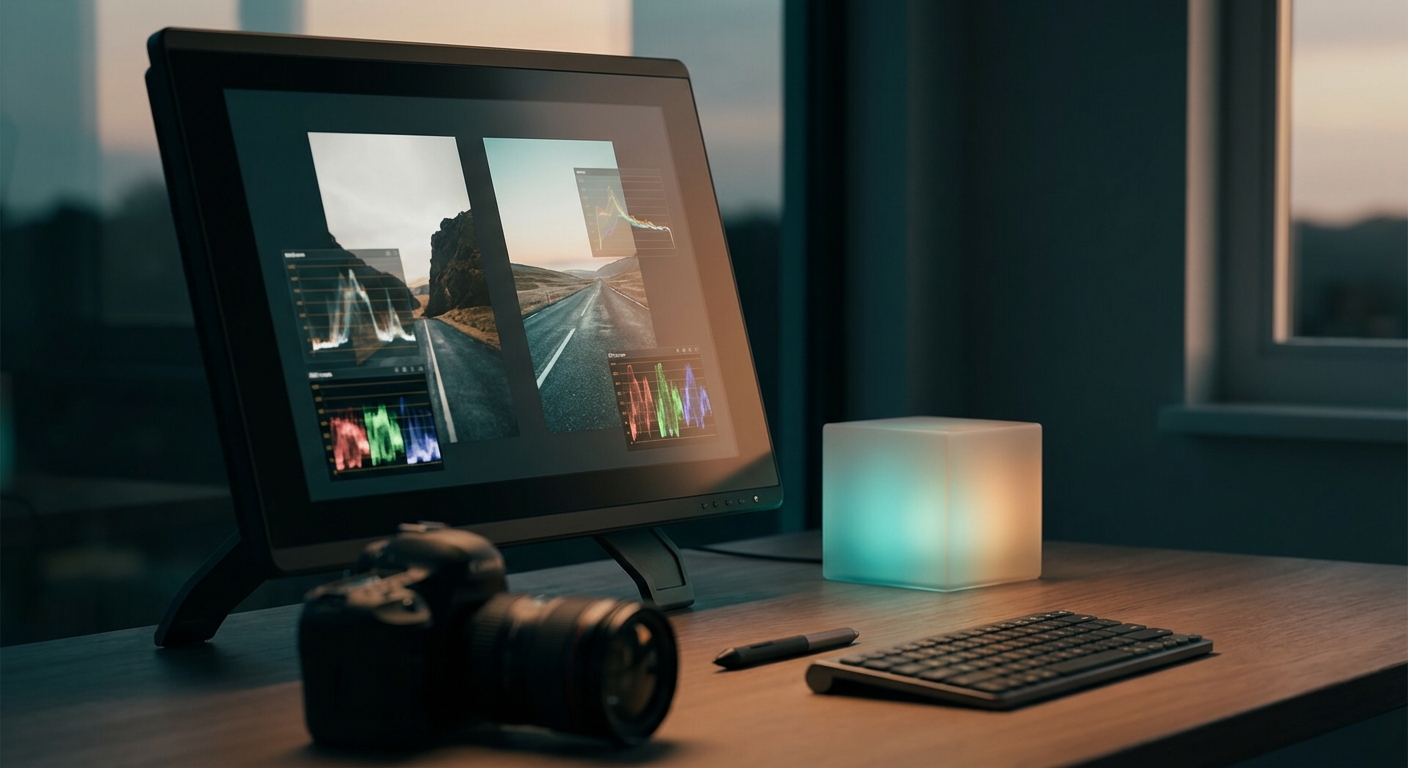
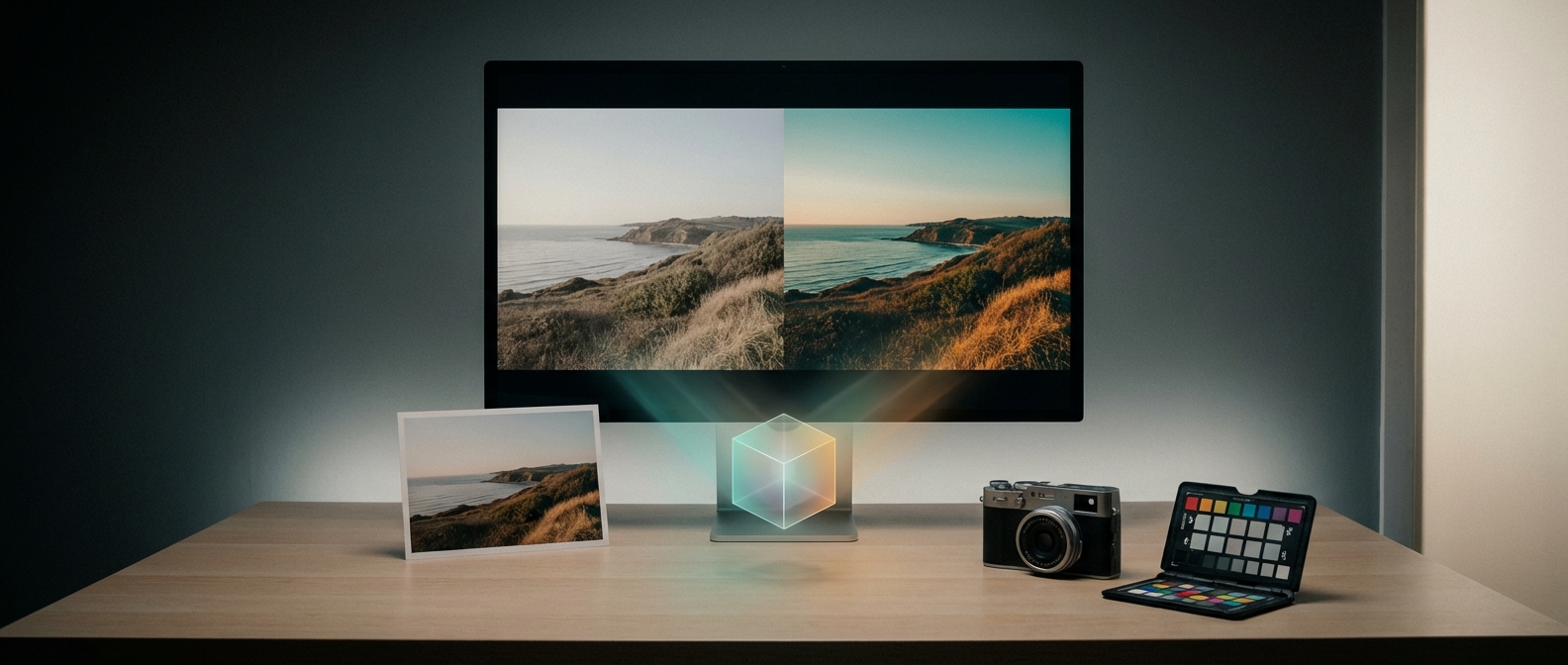
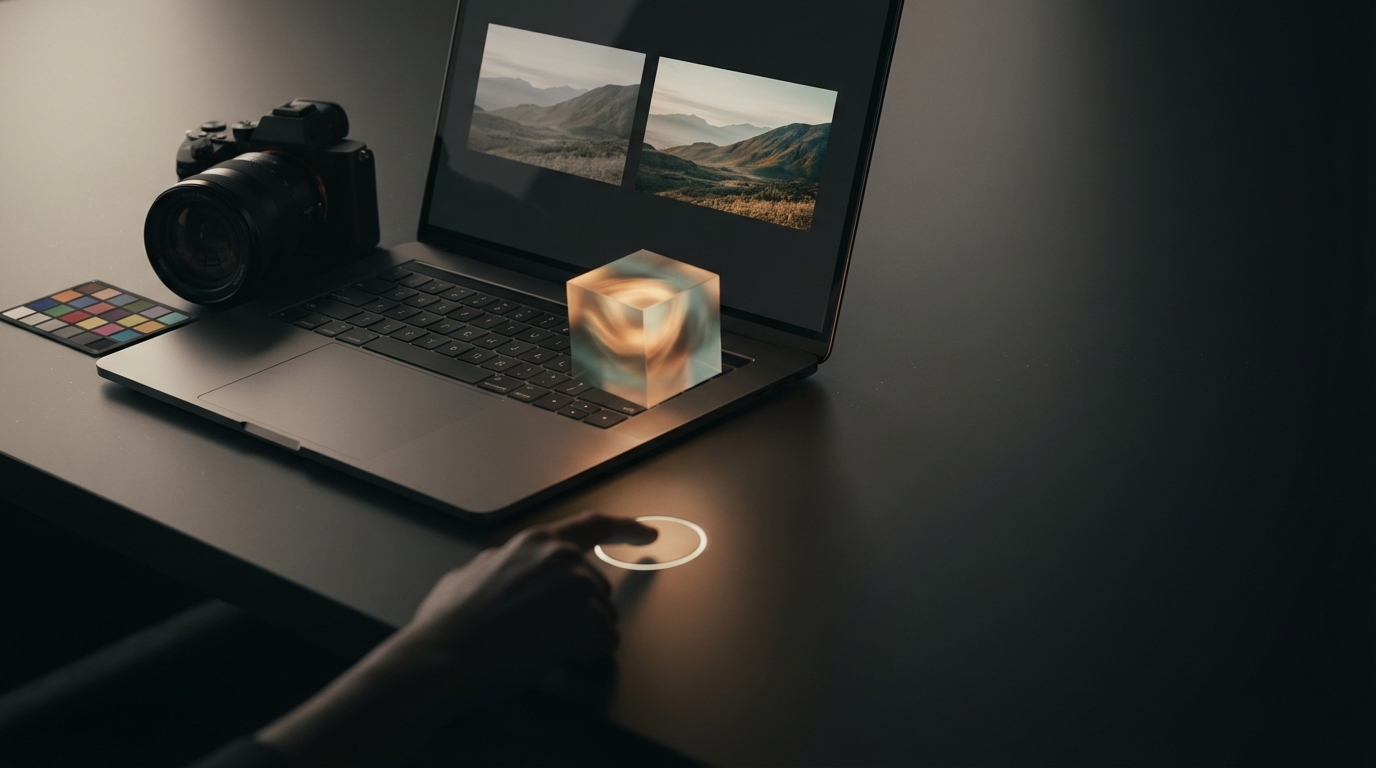
Colorby AI is a photo editor AI from Webtest that automatically analyzes a photo’s content, lighting, and mood and applies a matching color grade with a single tap. It matters because consistent, repeatable color—without hours of manual correction—directly saves time for photographers, content creators, and visual teams while preserving creative intent.
TL;DR
Colorby AI streamlines color matching and grading into a one-tap workflow using its AI Color Match feature and lets you export looks as LUTs for reuse. If you need to match photo colors across a set of images quickly and consistently, Colorby AI eliminates most manual steps and integrates into standard export pipelines.
Key takeaways
- AI Color Match analyzes content, lighting, and mood to automatically recommend a color style.
- One-tap grading converts complex color workflows into a single action; no reference image required.
- Final looks can be exported as LUTs (lookup tables) for reuse across projects and apps.
- Best use cases: batch consistency (albums, campaigns), rapid proofing, and non-technical users wanting pro-grade color.
Why matching photo colors matters
Matching photo colors is the difference between a disjointed visual set and a coherent visual identity. Consistent color grading protects brand and campaign consistency across platforms, reduces revision cycles between photographers and clients, and makes large shoots, albums, and e-commerce product sets look unified.
Colorby AI addresses this by turning an often-technical process into an accessible workflow: AI suggests and applies a style, then you export the result or the LUT for repeatable application.
What Colorby AI does (short, concrete overview)
- Core feature: AI Color Match — analyzes each photo’s subject, exposure, and mood to generate a color grade.
- Single-tap application — apply a recommended grade instantly without building curves, masks, or split-toning manually.
- LUT export — save the finished color grade as a standard LUT file to reuse in other editors or video pipelines.
- Target users: photographers, social creators, agencies, and visual professionals who need repeatable color quickly.
Quotable: "AI Color Match analyzes content, lighting, and mood to recommend a color style." Quotable: "Export final color results as LUTs to reuse preferred looks across different projects."
When to use Colorby AI
- Match photo colors across an entire shoot (weddings, events, product catalogs).
- Quickly prototype visual styles for client review.
- Standardize looks for an Instagram aesthetic or brand campaign.
- Speed up turnaround when manual grading is too slow or inconsistent.
Avoid using AI-only grading when final deliverables require pixel-level retouching or artistic split-toning that must be hand-crafted; Colorby AI is designed to reduce repetitive editing, not to replace detailed retouching.
How Colorby AI works (high-level)
- Step 1: The AI analyzes the photo’s content (skin tones, highlights, shadows), lighting (direction, contrast), and mood (warm vs cool, soft vs punchy).
- Step 2: It recommends a color grade that harmonizes tones and contrast for the image.
- Step 3: One tap applies the grade; you can accept, tweak, or export the grade as a LUT.
- Step 4: Exported LUTs can be applied to other images or imported into other software for consistent results.
Concrete capability: you can export a color grade as a standard LUT file (commonly .cube format) for reuse in other applications.
Practical step-by-step: Match photo colors in 6 steps
- Import images into Colorby AI (single file or batch).
- Let AI Color Match analyze each image automatically—no reference photo needed.
- Review the suggested grade: preview thumbnails let you scan multiple images quickly.
- Apply the selected grade with one tap.
- Optionally fine-tune basic sliders (exposure, contrast, warmth) for edge cases.
- Export finished images or export the color grade as a LUT (.cube) for reuse.
Result: A consistent look across images without manually recreating adjustments.
Checklist: Before you run automated color matching
- Camera profiles: confirm you’re working from RAW or high-quality JPEGs for best color detail.
- White balance: if you want "true" color, correct white balance or let the AI handle WB during grading.
- Intent: choose whether you want "natural" skin tones, cinematic contrast, or stylized color—this guides acceptance/tweaks.
- Batch grouping: group images with similar lighting to improve consistency when applying a single LUT.
Tips to get the best results
- Shoot a consistent base exposure and white balance across a set when possible—AI grading performs best on consistent inputs.
- Use batch exports when the same LUT suits 80–100% of images from a session to save time.
- Keep a short library of exported LUTs for recurring styles (brand look, seasonal campaign).
- For critical editorial or print work, use the AI grade as a starting point, then perform localized adjustments in your preferred editor.
Colorby AI vs Manual Grading vs Other AI Editors
- Speed
- Colorby AI: One-tap grading for most images
- Manual Grading: Slow (minutes–hours per image)
- Other AI Photo Editors: Varies; some require reference images
- Consistency across sets
- Colorby AI: Exportable LUTs for repeatable looks
- Manual Grading: Depends on user discipline
- Other AI Photo Editors: Varies; some tools rely on reference captures
- Technical skill required
- Colorby AI: Low — no color science required
- Manual Grading: High — requires color grading expertise
- Other AI Photo Editors: Low–medium; UX varies
- Export as LUT
- Colorby AI: Yes (.cube), for use in other apps
- Manual Grading: Possible but hand-built
- Other AI Photo Editors: Some offer LUT export, some do not
- Best for
- Colorby AI: Rapid, repeatable color matching
- Manual Grading: Fine-tuned, bespoke artistic control
- Other AI Photo Editors: Quick fixes or reference-based matching
Real examples (use cases)
- Wedding photographer: Apply a single LUT exported from Colorby AI to an entire album to ensure consistent skin tones and mood.
- E-commerce catalog: Match product colors across photos shot on different days by exporting a color grade and applying it to all product shots.
- Social creator: Generate several quick, distinct looks to A/B test post engagement without spending hours in an editor.
Concrete scenario: Export a LUT from a preferred portrait grade and apply it to 100 product images to maintain a single brand tone across a catalog.
Exporting and using LUTs: practical guidance
- Export format: Use .cube for compatibility with most photo and video apps.
- Apply LUTs in batch: Import the .cube into your primary editor (Lightroom Classic via LUT plugin, Capture One with LUT support, or video editors) and apply to grouped images.
- Version control: Name LUTs with versioning (e.g., BrandWarm_v1.cube) so teams avoid accidental overwrites.
- Reuse rule: If >70% of an album looks correct with one LUT, apply it across the set and adjust the remaining images individually.
Integration and workflow tips for teams
- Create a shared LUT folder in cloud storage (Dropbox, Google Drive) and document intended use for each LUT.
- Use Colorby AI for first-pass grading; hand off to retouchers for selective fixes (skin smoothing, local dodge/burn).
- Standardize file naming and metadata: embed LUT name into export metadata for traceability.
Limitations and when to check results manually
- Extreme exposure or mixed lighting conditions may need manual local adjustments after AI grading.
- Artistic grades that require masking or advanced local retouching are outside the one-tap ideal.
- Always proof grades on a calibrated monitor for color-critical work like print.
FAQ
Q: Do I need a reference photo for Colorby AI to match colors?
A: No. Colorby AI’s AI Color Match analyzes the photo’s own content, lighting, and mood and recommends a style without a separate reference image.
Q: Can I export the color grade and use it in other software?
A: Yes. Colorby AI lets you export final color results as LUT files (commonly .cube) so you can apply the same look in other editors or video applications.
Q: Will one tap always give perfect results for every image?
A: One-tap is designed to be a strong starting point. For the majority of images it produces usable results; images with extreme lighting or special artistic needs may still require small manual tweaks.
Q: Is Colorby AI suitable for professional print work?
A: It’s an efficient first-pass tool. For print-critical jobs, use the AI grade, then proof and fine-tune on a calibrated workflow before final output.
Q: How does Colorby AI help teams maintain brand consistency?
A: Teams can export and share LUTs; applying the same LUT across shoots ensures repeatable color and shortens review cycles.
Quick checklist: Post-processing handoff
- Exported images: embed LUT name in metadata.
- Exported LUTs: store with versioned names and a short usage note (e.g., "Warm portrait, +5 contrast").
- Client proofs: produce 2–3 graded variants using different LUTs for A/B feedback.
- Final delivery: supply original RAW + final graded JPEG/PNG and the LUT used.
Final thoughts
Colorby AI by Webtest reduces the technical barrier to professional color grading by turning complex workflows into a one-tap operation with reusable LUT export. It’s a practical tool for anyone who needs to match photo colors consistently and efficiently—especially when speed and repeatability matter more than hand-crafted, pixel-level control.
If you want, I can:
- Walk you through a sample workflow for a wedding album or product catalog.
- Draft naming and LUT versioning conventions for your team.
- Explain how to integrate Colorby AI LUTs into Lightroom or Premiere Pro.
Last updated: 2026-03-31